How do I set up Saved Searches and Email Alerts?
If you log onto Prospector regularly, but don't want to sift through all the latest insights, Saved Searches and Email Alerts enable you to quickly see the insights that are most relevant to you. For example, if you only want to monitor expansion activity in the automotive industry - you can.
The advantage of Prospector Saved Search is that it will continue to add fresh insights matching your specified criteria as they are published. Further power is delivered by Email Alerts – as we add new material to Prospector that meets your criteria, an email is sent to you prompting you to login and directly view that new intelligence.
So, all you need to do is set up a Saved Search and/or Email Alert by following the steps outlined below:
1. Conduct a search of either the insights, companies, contacts or brands databases using the Build a Search facility according to the criteria that you want to monitor
2. Enter a name for your Saved Search in the form located at the top/bottom of the results panel marked 'Search Name'

3. Click the Search' box and if you also want an alert, the Email Alert box
4. Click the 'Save' button…
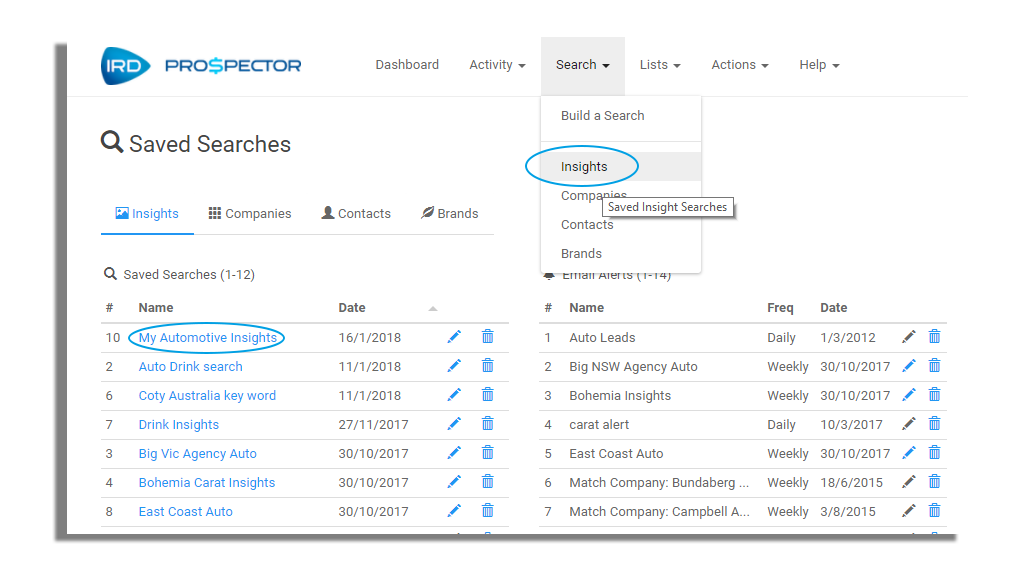
5. Your Saved Search and Email Alert will now appear in the Saved Searches section of the site: accessible under the main Search menu item at the top of the page
Where are my Saved Searches & Email Alerts?
Your Saved Searches and Email Alerts are located in the Search section of the site. They can be accessed by clicking the options on the Search menu on the header navigation bar, or via your Dashboard.
To run a Saved Search simply click on the blue search name field.
Saved Searches and Email Alerts can be edited by clicking on the blue pencil icon. Where the pencil icon is grey, the Saved Search or Email Alert was created using the old Prospector platform and is not currently editable.